
Most people use a headphone mic for gaming, calls, or chatting, but it’s not always obvious that you can use that same mic on your computer without buying anything extra. The good news is you can, and getting it working only takes a few simple steps.
This guide walks through how to set up your headphone mic on a PC, how headsets and microphones actually work, and how to troubleshoot common issues along the way.
How to Use a Headphone Mic on PC
Once you’ve plugged your headphone mic into your computer and confirmed it’s connected to a working sound source, open Windows Sound Recorder to begin testing.
Step 1: Manage Audio Devices
Open your PC’s settings and find Manage Audio Devices. Once that opens, go to the Recording tab, which should let your PC start detecting sound coming from your headphones.
Step 2: Test the Mic
To confirm your PC is picking up sound from the mic, try tapping your headphones or speaking into them directly. If you see any response on the Recording tab, your PC is successfully receiving input from the headset.
Step 3: Set the Mic as Default
Next, set your headphone mic as the default microphone on your PC. Once this is done, your headphones will automatically activate as the default input device any time you plug them into the sound input jack.
Step 4: Optimize the Sound
Since headphones aren’t purpose-built microphones, you likely won’t get studio-quality sound right away.
Go to the Sound settings in your Control Panel and try increasing the input volume first. From there, adding a high-pass filter can help reduce some of the humming or background noise that often comes through.
If your PC includes an equalizer, use it to boost the important mid and high frequencies relative to the lower end. This generally results in a noticeably better overall sound from a headphone mic.
How Do Headphones and Microphones Work?
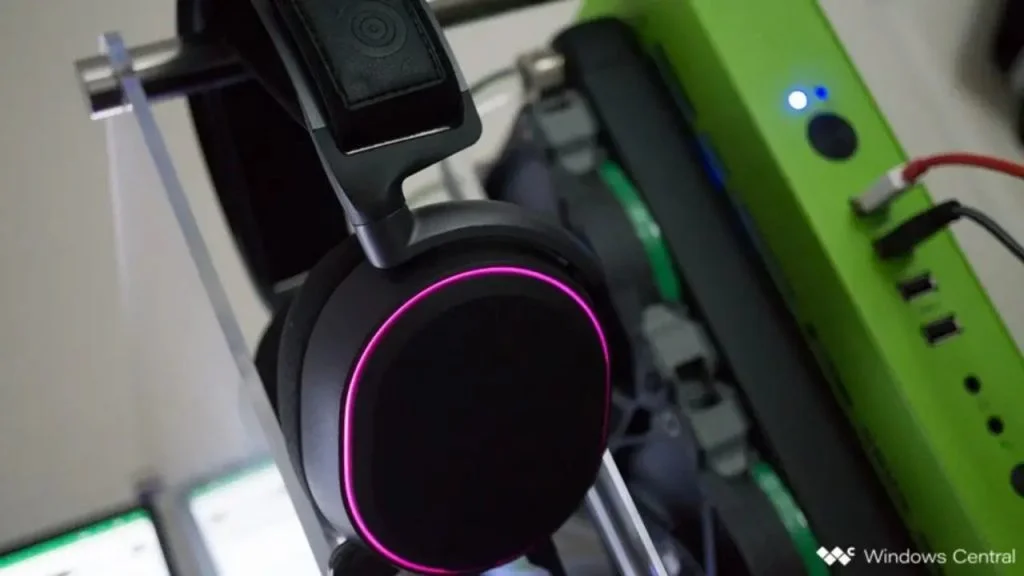
Headphones and microphones are designed in fairly similar ways. Both rely on a diaphragm that responds to sound vibrations, just in opposite directions.
In headphones, incoming electrical signals cause the diaphragm to vibrate, producing sound waves that you hear. In microphones, the diaphragm instead picks up vibrations from an external sound source, converting them into an electrical signal that can be transmitted live or saved as a recording.
How to Set Up Your Headset on Windows
To use a headset, you need to connect it properly, which sounds simple but can trip people up if they’re not familiar with the available audio ports on their PC.
This typically means plugging the headset’s cable into an available port, or connecting wirelessly if that’s an option. Here’s a breakdown of the common connection types.
3.5mm Jack
Older or more universal headsets typically split into two 3.5mm jacks at the end, one for audio output and one for the microphone. Pink usually indicates the mic input, and green indicates headphone output.
USB
USB-powered headsets often include extras like inline amps and additional controls, but in terms of raw audio quality, there isn’t usually a huge difference compared to a standard 3.5mm connection.
Wireless
Whether Bluetooth or a dedicated USB wireless receiver, wireless headsets eliminate cables entirely, letting you move more freely without worrying about tangled cords.
Depending on your case and motherboard, you may have additional ports located near the front of your desktop, which can be useful if your cable is short or your rear ports are already full. The biggest factor in sound quality ultimately comes down to your motherboard’s sound card, especially compared to a dedicated digital-to-analog converter (DAC).
Troubleshooting Windows Headset Issues
Make Sure You’re Using the Correct Ports
Double-check that your headset is actually connected to the right port. For 3.5mm jacks, green is typically output and pink is input, depending on your sound card. Mixing these up means nothing will work. Newer motherboards may include separate ports for surround sound, so it’s worth checking your manual for specifics.
Auto-Detection Issues
Audio management software, like Realtek’s HD Audio Manager, can sometimes interfere with proper detection. Try disabling jack detection in that software to see if it resolves the issue.
Reinstalling Drivers
If your headset still isn’t working, the issue may be driver-related. Open Device Manager, uninstall the drivers for your connected headset, then restart your PC and reconnect the headset to let Windows reinstall the drivers automatically. It’s a simple fix, but it works more often than you’d expect.
Try a Different Audio Format
If you’re still not getting sound, try selecting a different input or output format in the device’s properties window, following the same steps used to set up the headset initially.
Check for a Mute Switch
Depending on the brand and model, your headset may include inline controls like a volume slider or mute button. Make sure none of these are accidentally muting your mic.
Try a Different Headset or Device
To rule out whether the issue is with your PC or the headset itself, try the headset on a different computer or device, or try a different headset on your current setup if you have one available.
FAQ
Can I use my headset as a microphone for my computer?
Yes. The main challenge is that most full-sized desktop PCs use separate headphone and microphone jacks, while phones and laptops typically combine both into a single 3.5mm port.
Why isn’t my mic working on my PC?
If your headset has a mute button, make sure it isn’t activated. Confirm the headset is properly connected, and check that it’s set as your system’s default recording device under Settings, then System, then Sound.
How can I use headphones as both a mic and speaker on a PC?
Right-click the volume icon in your system tray, open Sound Settings, and make sure your headphones are selected as the default device for both playback and recording.
Conclusion
Getting your headphone mic working on a PC is a fairly direct process. While having a single combined audio jack to manage can be confusing at first, there are several reliable ways to work around it depending on your specific headset and PC setup.
It’s a quick fix overall, though it’s worth knowing that this approach uses your headphones purely as a microphone. If you want to use your headset’s built-in mic specifically, the options above cover that as well.
For more on related setups, see our guides on how to use a USB microphone on Xbox One, how to hold a microphone, how to use a Bluetooth karaoke microphone, how to make Blue Snowball sound better, and how to adjust microphone sensitivity.