
Enabling your microphone over a remote desktop connection is a genuinely convenient feature, letting you communicate by voice no matter where you’re physically located. It opens up smoother voice-based workflows for things like remote troubleshooting, recording voice notes, or general collaboration.
This guide covers what remote desktop is, why enabling your microphone matters, and how to set it up step by step.
What Is Remote Desktop in the Context of a Microphone?
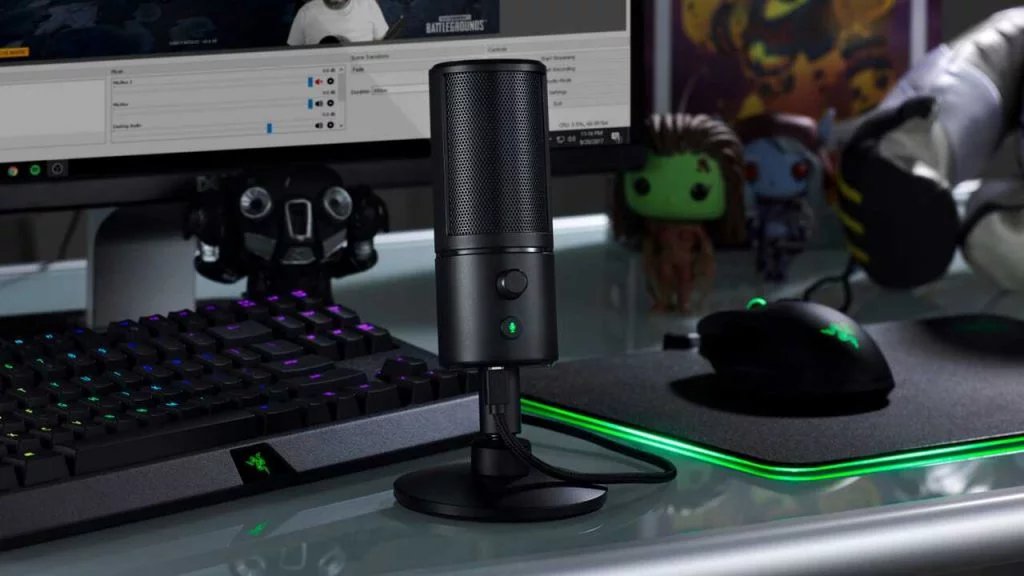
Remote Desktop Protocol (RDP) is a network protocol used for virtual desktop access and remote connections to Windows machines. RDP lets you connect to another computer using the Remote Desktop Connection software, either over a local network or the internet.
If you’re wondering whether you can use your microphone over a remote desktop connection, the answer is yes.
Connecting to another computer this way is often referred to as remote assistance, and it’s commonly used to help someone troubleshoot a problem on their system remotely.
Why Use Remote Desktop Mode With a Microphone?
In normal in-person communication, there are multiple channels available to understand what someone is saying. Over an RDP connection, if you don’t have microphone access enabled, you won’t be able to hear the other person at all, which can lead to miscommunication and wasted time. If your remote setup involves a headset specifically, our guide on how to use a headphone mic on PC covers related configuration steps.
How to Enable Microphone on Remote Desktop
Enabling your microphone on a remote desktop connection requires a few changes to your system settings. Here’s the process step by step.
1. Search for Remote Desktop Connection
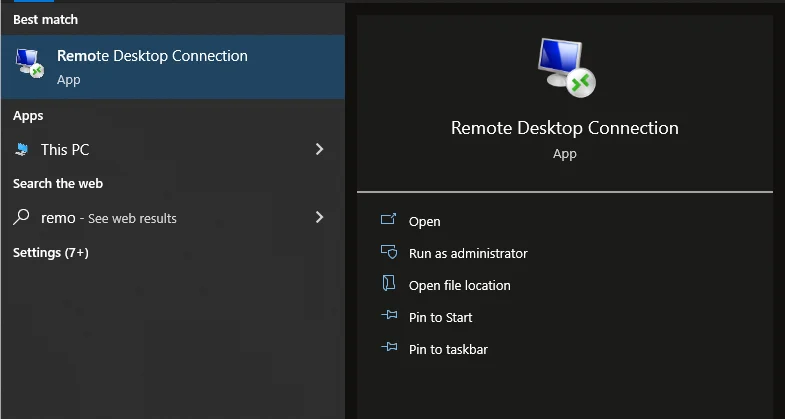
On your PC, search for “Remote Desktop Connection.” A popup window will appear, which is the program used to connect to other computers.
2. Open Show Options, Then Local Resources
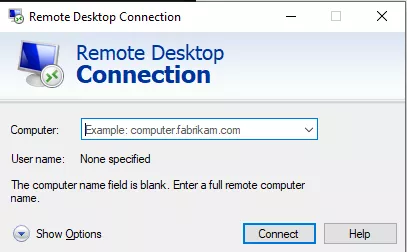
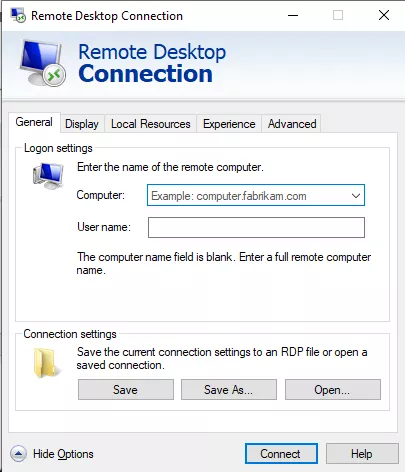
In the popup, click “Show Options” in the bottom-right corner. In the next screen, find and click “Local Resources.”
3. Open Remote Audio Settings
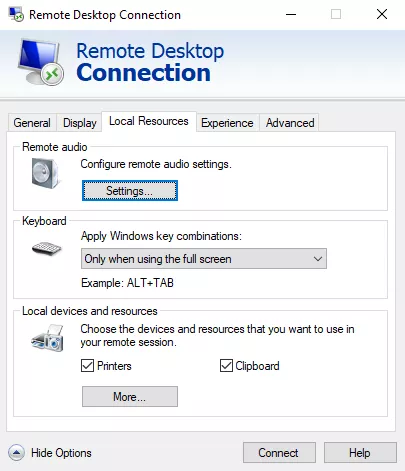
Under “Remote audio,” look for “Configure Remote Audio Settings,” then click the Settings option underneath it.
4. Enable Recording From This Computer
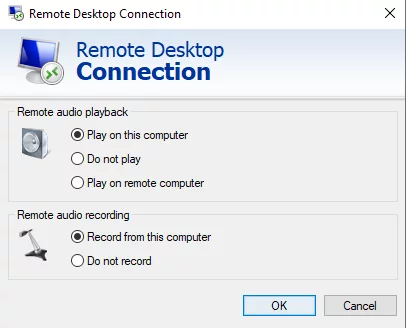
Three options will appear for Remote Audio Playback. Select “Play on this computer,” then below that, select “Record from this computer” for Remote Audio Recording. Click OK to save your settings.
Uses of Remote Desktop Mode
Remote desktop mode has several practical uses, including:
- Remotely accessing your computer to work on documents or projects
- Helping troubleshoot someone else’s computer remotely
- Accessing files and applications stored on another computer
- Playing games or using applications that aren’t available on your local machine
FAQ
Can I use my microphone on a remote desktop?
Yes. You can use your microphone over a remote desktop connection once it’s properly enabled in your settings.
How do I enable the microphone on my system?
You’ll need to make a few changes in your system settings. Start by searching for “Remote Desktop Connection,” then follow the steps outlined above.
What are the different uses of remote desktops?
Common uses include remotely accessing a networked computer, helping troubleshoot someone else’s system, accessing files and applications stored elsewhere, and using games or apps not available on your local machine.
How do I create an RDP connection?
Search for “Remote Desktop Connection” in your Start menu, then follow the same steps covered above to configure your audio settings.
Conclusion
When using a remote desktop connection, keep in mind that your internet connection speed directly affects sound quality. If you’re having trouble hearing the other person clearly, try improving your audio settings or reducing the number of people connected to the same remote session at once.
For more on related microphone setups and troubleshooting, see our guides on how to clean a microphone pop filter, how to dry out a wet microphone, how to do ASMR without a mic, and how to fix high pitch noise from microphone.