

Microphone sensitivity controls how loud your voice comes through on a recording. If it’s set too low, your voice can sound faint or get lost when others are talking nearby. If it’s set too high, the recording can become muddy or distorted, especially when you’re close to the mic.
Getting sensitivity right helps your voice stand out clearly without competing with background noise or other people in the room. This guide covers what microphone sensitivity is, why it matters, and how to adjust it across Windows, Mac, iOS, and Android.
What Is Microphone Sensitivity?
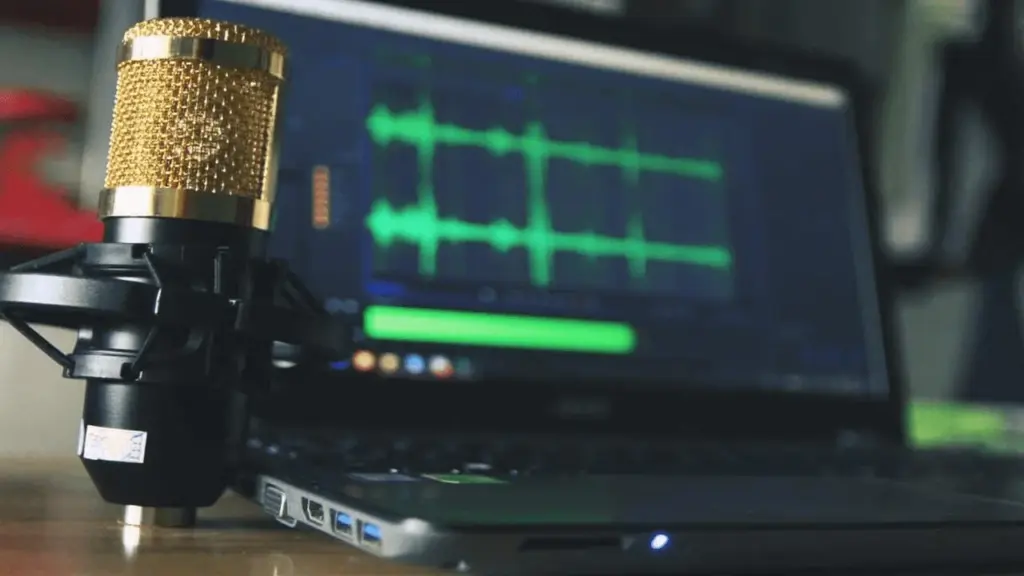
Microphones pick up sound from both nearby and distant sources. Sensitivity is the setting that controls how responsive a microphone is to that incoming sound, whether you want it picking up more or less of what’s happening around it.
This setting lets you control how loud your voice comes through when speaking into the mic. People commonly adjust sensitivity to get clear audio on platforms like Skype or TeamSpeak.
Adjusting sensitivity properly lets you speak both quietly and loudly into your microphone without needing to change other settings every time.
Why Adjust Microphone Sensitivity?
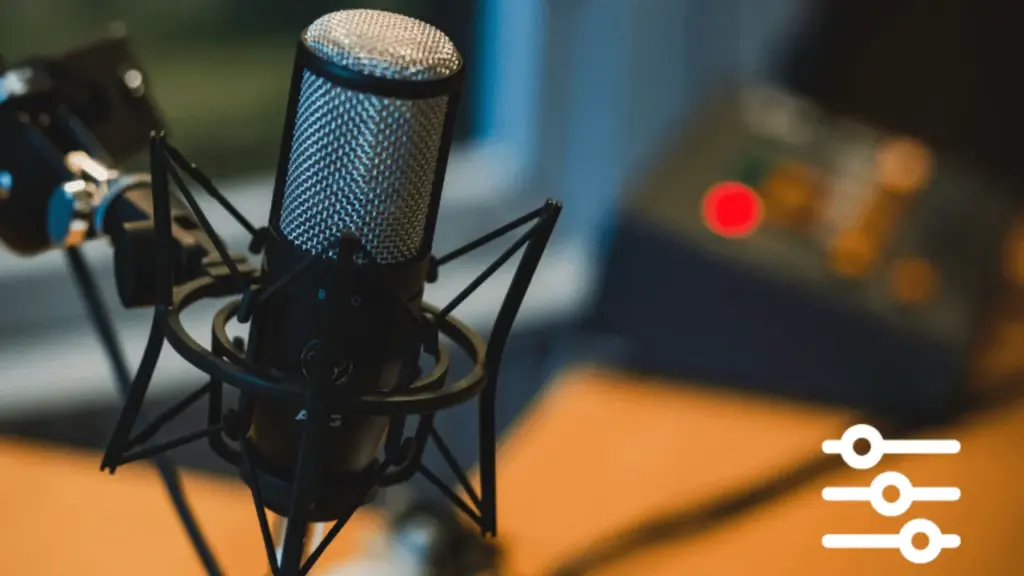
There are several common reasons people adjust microphone sensitivity. A few examples include playing online games, chatting with friends on Skype or TeamSpeak, broadcasting through an open mic, recording yourself speaking, or doing voiceover work for videos.
If your microphone connects directly to your computer, adjusting sensitivity lets you speak both quietly and loudly without needing to change any other computer settings in between.
For more on connecting multiple mics to a single setup, see our guide on how to connect multiple microphones to a computer.
Benefits of Adjusting Your Mic’s Sensitivity
Adjusting sensitivity correctly makes it more comfortable to speak at a louder volume when needed. It also makes it easier to test your setup and confirm your settings are dialed in properly.
Getting sensitivity right can also let you increase your overall volume without distorting your voice or risking damage to your microphone, which can happen if input levels run too hot.
How to Adjust Your Microphone’s Sensitivity
Start by understanding how gain control works in your computer’s audio settings. Most modern computers let you adjust volume level, or gain, through your sound card drivers, such as the built-in mixer app on Windows.
It also helps to understand how a microphone actually works. Microphones primarily pick up sound coming from the direction they’re pointed. Sound reaching the diaphragm from other directions isn’t captured with the same emphasis, which is part of why directional mics behave differently from omnidirectional ones.
Built-in microphones on laptops, tablets, and phones use a fixed gain setting. On many devices, that fixed gain is too low for serious recording purposes. To work around this, you’d typically need an external microphone preamplifier with adjustable gain controls. For more on what that preamp does, see our guide on what a microphone preamp is.
How to Adjust Mic Sensitivity on Windows
Open the Start Menu, then open the Sound icon in the notification area and select Sound Settings. A Microphone Properties window will open. Navigate to the Recording tab, then double-click your microphone to open a window with four tabs, and select Levels.
Alternatively, right-click the sound icon in the notification area, select Open Sound Settings, then choose Input. Select your microphone device from the dropdown menu, which is usually Microphone (High Definition Audio Device) by default unless you’re using a headset mic.
From the microphone properties window, navigate to Levels. By default, the microphone level sits at 50% (or +6.1dB). Increase or decrease it as needed, then click Apply.
How to Adjust Input Volume on a Mac
Click the Apple menu in the top-left corner and select System Preferences, then double-click the Sound icon. Click the Input tab to see your microphone list, and select the microphone you want to use, typically the internal microphone.
Adjust input volume by moving the slider to the right while speaking in a normal voice. Stop adjusting once the input level bars move to roughly the halfway point.
If an additional microphone appears in the list, you can disable it by selecting it and moving its volume slider all the way to the left.
How to Adjust Input Volume on an iPad or iPhone
Individual apps, such as Music or Video, let you adjust their own volume levels. You can also set your device’s system volume for general use.
To adjust system sound, tap Settings on the Home screen, then tap Sounds under General settings, and drag the slider right to increase volume or left to decrease it.
If you’re using an iPad and want mono audio, tap Settings, then General, then Accessibility, and toggle Mono Audio on. Tap the Home button to save your changes.
How to Adjust Input Volume on Android
From your phone’s main menu, tap Applications, then download a microphone amplifier app. Open it and grant microphone and storage permissions when prompted, then dismiss the presets menu to reach the main screen.
Move the Audio Gain slider a few points to the right to increase sensitivity, and adjust the Input Filter slider similarly to improve noise suppression. Tap the power button to enable the amplifier, then use the record button to create a test recording. Review your recordings from the home page and keep adjusting until your voice sounds clear.
FAQ
Can I change microphone sensitivity?
Yes. Right-click the volume icon in your system tray, select Open Sound Settings, then go to the Levels tab to adjust your microphone volume settings.
How do I control mic sensitivity?
Go to Settings, then System, then Sound. Under Input, confirm your microphone is selected, then click Device Properties, followed by Additional Device Properties. In the Levels tab, increase or decrease the microphone sensitivity as needed.
What is good sensitivity for a microphone?
An active microphone, whether condenser or active ribbon, typically has a sensitivity rating between 8 and 32mV/Pa (-42 to -30dBV/Pa). Sensitivity ratings within that range are generally considered solid for an active microphone. For more on how gain interacts with sensitivity, see our guide on what is gain on a microphone.
Conclusion
Adjusting microphone sensitivity correctly is a simple but genuinely useful skill that can noticeably improve your recording quality. It’s not the only factor that affects sound, but getting it right makes a real difference whether you’re gaming, podcasting, or recording vocals.
For more on related setup topics, see our guides on how to use Soundpad on Discord, how to set up a wireless microphone system, how to record binaural audio, and how to make your voice deeper on the mic.